
Guide · Live events
Put an iPhone on the venue screens.
Getting a camera onto the screens at a concert or a service usually means a camera, a cable run down the room, and a box to scale it. If the presentation machine already runs ProPresenter, Resolume or anything else that takes NDI, an iPhone can be on those screens in about ten minutes — over Wi-Fi, with nothing new in the rigging.
The problem worth naming
Image magnification — the close-up of whoever is on stage, thrown to the screens so the back of the room can see — is the one thing a venue notices immediately when it's missing. The traditional path is a camera on a tripod, SDI or HDMI back to front-of-house, and a switcher or scaler feeding the screens. That's a real budget and a real cable run, and in a rented room it's often simply not allowed.
Meanwhile the presentation computer is already on stage duty, already driving every screen, and already able to take a live video input. That's the opening.
The shape of the fix
Four pieces, three of them free:
- iPhones run Airlive Camera — free on the App Store.
- A Mac runs Airlive Bridge — free — and receives them over Wi-Fi.
- Bridge publishes the program as an NDI source on the network.
- Your presentation software picks that source up and puts it on a screen.
The only cable you add is Ethernet from the router to the Mac. The cameras stay wireless, which is the whole point in a room where you can't run copper across the floor.
Step 1 — get the phones into Bridge
Open Airlive Camera → Live on each phone and pick the Mac by name; discovery is automatic on the local network, so there are no addresses to type. Each phone lands in Bridge as a channel.
With more than one camera you get a multiview and a CUT, so someone can actually direct the shot going to the screens rather than leaving one locked-off wide up all night.
Step 2 — turn on the NDI output
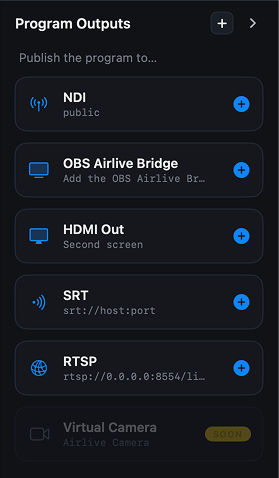
In Bridge's Program Outputs rail, enable NDI. Whatever is on Program is now a named source on the network — that's it, no configuration.
Step 3a — into ProPresenter
ProPresenter takes live video from capture devices, SDI, NDI and Syphon. Add the Bridge source as a video input, then place it on a slide or a dedicated look for the screens you want it on. Because ProPresenter drives every output independently, you can put the camera on the auditorium screens while the stage display keeps showing lyrics or notes.
A point people get wrong. ProPresenter has had a public API since 7.9, and it's excellent — but it is a control API: slides, triggers, state. It is not a way to push video in. Video arrives through NDI, Syphon or a capture card, full stop. Anyone offering you a "ProPresenter video plugin" is describing something that doesn't exist.
Step 3b — into Resolume, or anything else
Resolume has NDI inputs enabled permanently: any program sending on the network shows up under the sources tab, and you drop it onto a deck like any other clip. The same is true across the industry — vMix, Wirecast, TouchDesigner, Unreal Engine and OBS (with its NDI plugin) all take the source without knowing or caring that it started on a phone.
If the presentation machine is a Mac and it's the same machine running Bridge, Syphon is worth a look too — it hands frames between apps on one computer as GPU textures, so nothing gets encoded for the network at all.
Latency, honestly
For IMAG this is the question that matters, because the audience can see the stage and the screen at the same time. The chain is: encode on the phone, Wi-Fi, decode on the Mac, re-encode to NDI, decode in the presentation app. Each hop costs a little.
- Give the production its own router or SSID. A busy guest network is the difference between "fine" and "unusable".
- Wire the Mac with Ethernet. Only the cameras should be on Wi-Fi.
- Put every camera on the same latency preset so cuts stay in sync — why a fixed delay beats "as fast as possible".
- Watch a screen from the audience position before you commit. Rooms differ, and your eyes are the acceptance test.
Where this comfortably works: talks, services, panels, worship, conferences. Where a wired camera still wins: anything where the screen sits directly behind the performer and the audience reads both at once, and fast-cut music production where every frame shows.
The part nobody has built yet
Here's where it gets interesting. Two open interfaces exist side by side: ProPresenter's HTTP control API, and the Airlive protocol's control channel, which carries tally state and full camera control. Nothing connects them today — but nothing stops you.
A small script that watches which camera Bridge has on Program and calls the ProPresenter API could switch a look automatically the moment the camera goes live, or trigger a lower-third for whoever is on that camera. This is a hundred lines of glue, and it's exactly the kind of thing an AI coding assistant now writes in an evening from two published specs. We're not shipping it; we published the interface so you don't have to wait for us to.
What to know before you plan around it
Sound comes off the desk as it always did — the protocol carries video and control, not audio. The camera feed is 1080p H.264, which is the right resolution for a screen mix and a ceiling if you were hoping for 4K. And everything happens on the local network: to leave the building, you'd restream from Bridge over SRT.
FAQ
Do I need a Mac? For this path, yes — Bridge is the receiver that publishes NDI. If you'd rather not have one in the chain, the protocol is open and a receiver can be written for whatever you do run.
How many cameras? The network is the limit, not the software. A dedicated router handles more phones than a room like this usually needs.
Can the operators tell when they're live? Yes — every phone shows green when cued, red on air, which matters more with volunteers than with a paid crew.
What does it cost? The camera app, Bridge and the plugins are free. A $14.99 one-time purchase removes the watermark from a live stream; recordings never carry one.